
How to Export Transaction History on Aptoscan
Keeping a clear record of your blockchain transactions can be essential, whether you’re filing taxes, preparing for an audit, or simply reviewing your trading activity. To make this easier, Aptoscan offers a CSV export feature that allows users to download their transaction history in a spreadsheet format.
In this guide, we’ll walk you through the simple steps to generate and export a CSV file using Aptoscan.
How to Export a CSV File on Aptoscan
The Export CSV button is located at the top right corner of the Transactions and Transfers tabs on any Account page. Follow these steps to download your transaction data:
- Enter your wallet address in the search bar and select the correct result to open your Account Details page.
- Navigate to either the Transactions tab or the Transfers tab, depending on the type of data you need.
- Use the available filters to narrow down your results (Learn more about available filters on Aptoscan: Simple guide to Aptoscan filters).
- Click the Export CSV button.
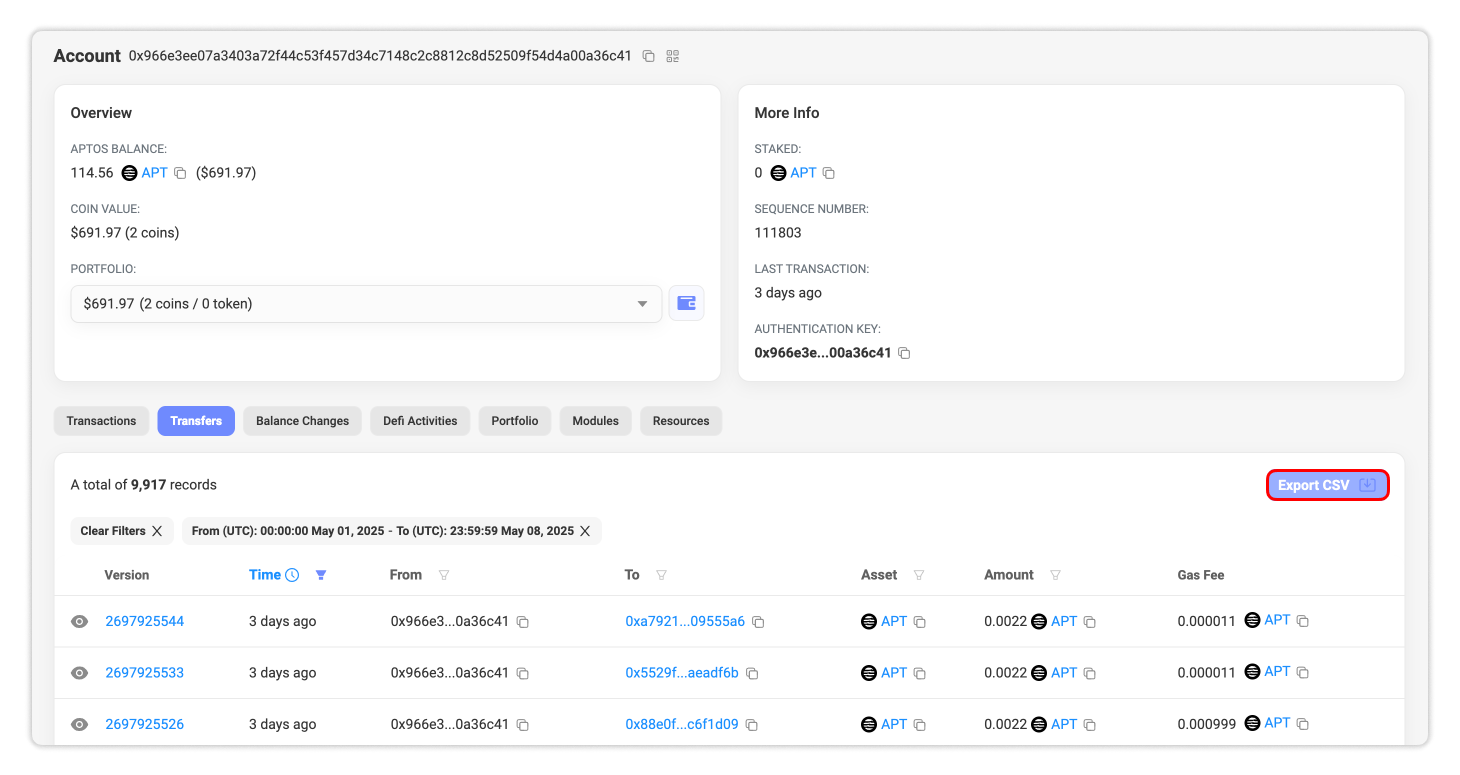
- Confirm all details and click Download.
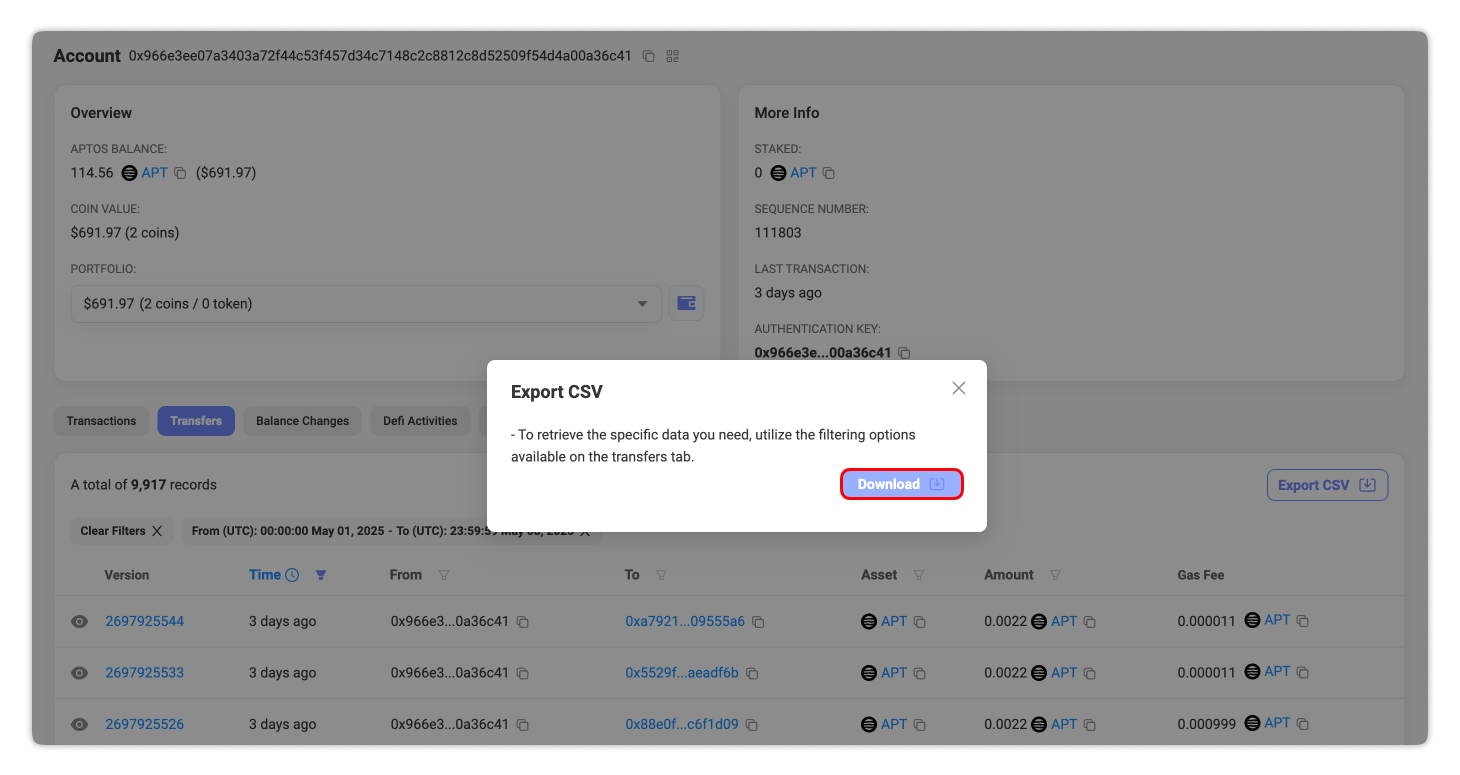
- Your filtered (or full) transaction history will be downloaded as a CSV file.
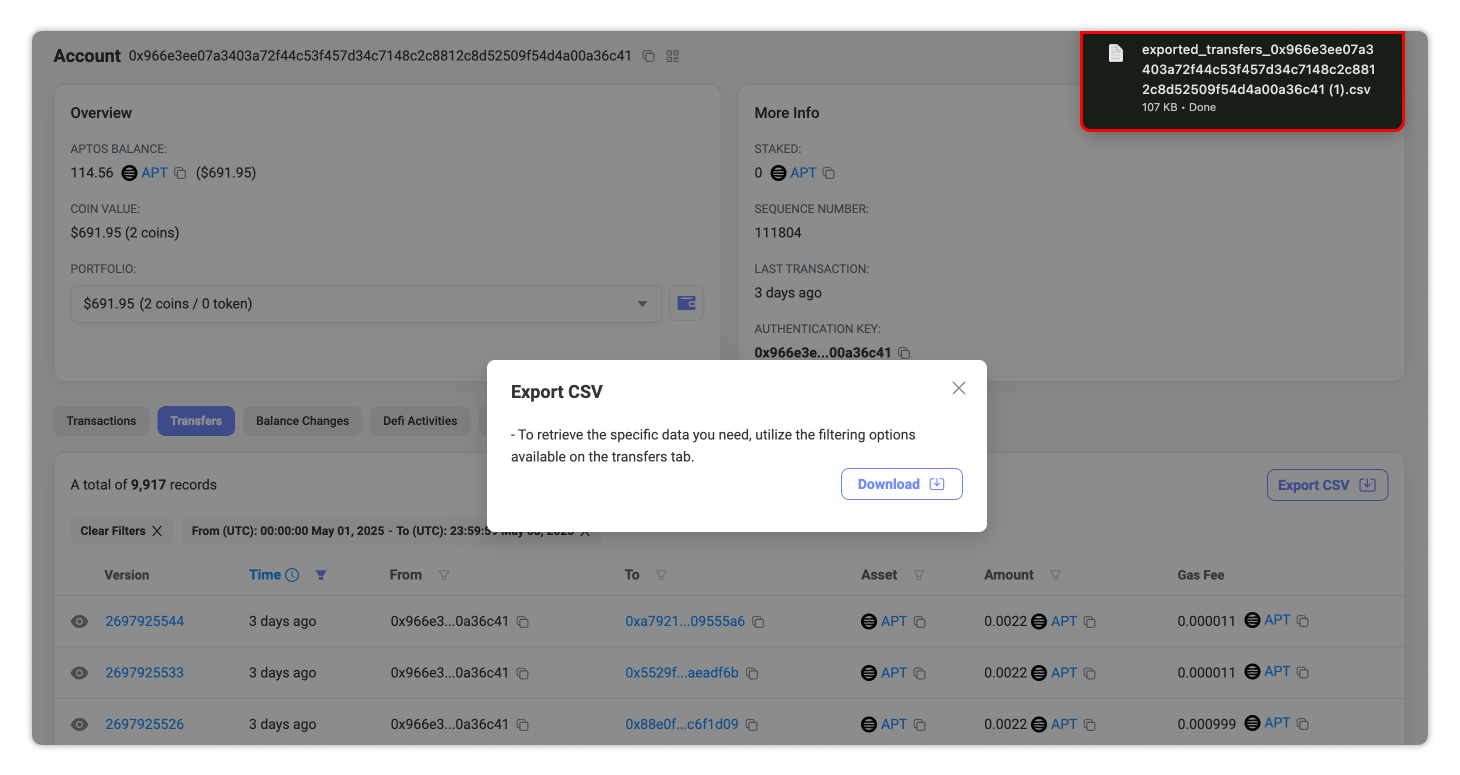
This file will provide a detailed record of your Aptos activity—ready for tax reporting, portfolio tracking, or any other purpose that requires clear documentation.

Ngoc Tran
Published: Still Have Questions?
Supported Explorers
 Abscan
  Apescan
  Aptoscan
  ArbiScan
  BaseScan
  Berascan
  Blastscan
  BscScan
  BTTCScan
  CeloScan
  Etherscan
  Fraxscan
  HyperEVMScan
  KatanaScan
  Lineascan
  Mantlescan
  MegaETH Etherscan
  MemeCoreScan
  MonadScan
  opBNB Explorer
  OP Mainnet Etherscan
  Plasmascan
  PolygonScan
  SeiScan
  SnowScan
  SonicScan
  StableScan
  Taikoscan
  Uniscan
  WorldScan
  XDCScan
  RobinScan
  ArcScan